



FAQs
Having trouble? Find answers to common issues below.
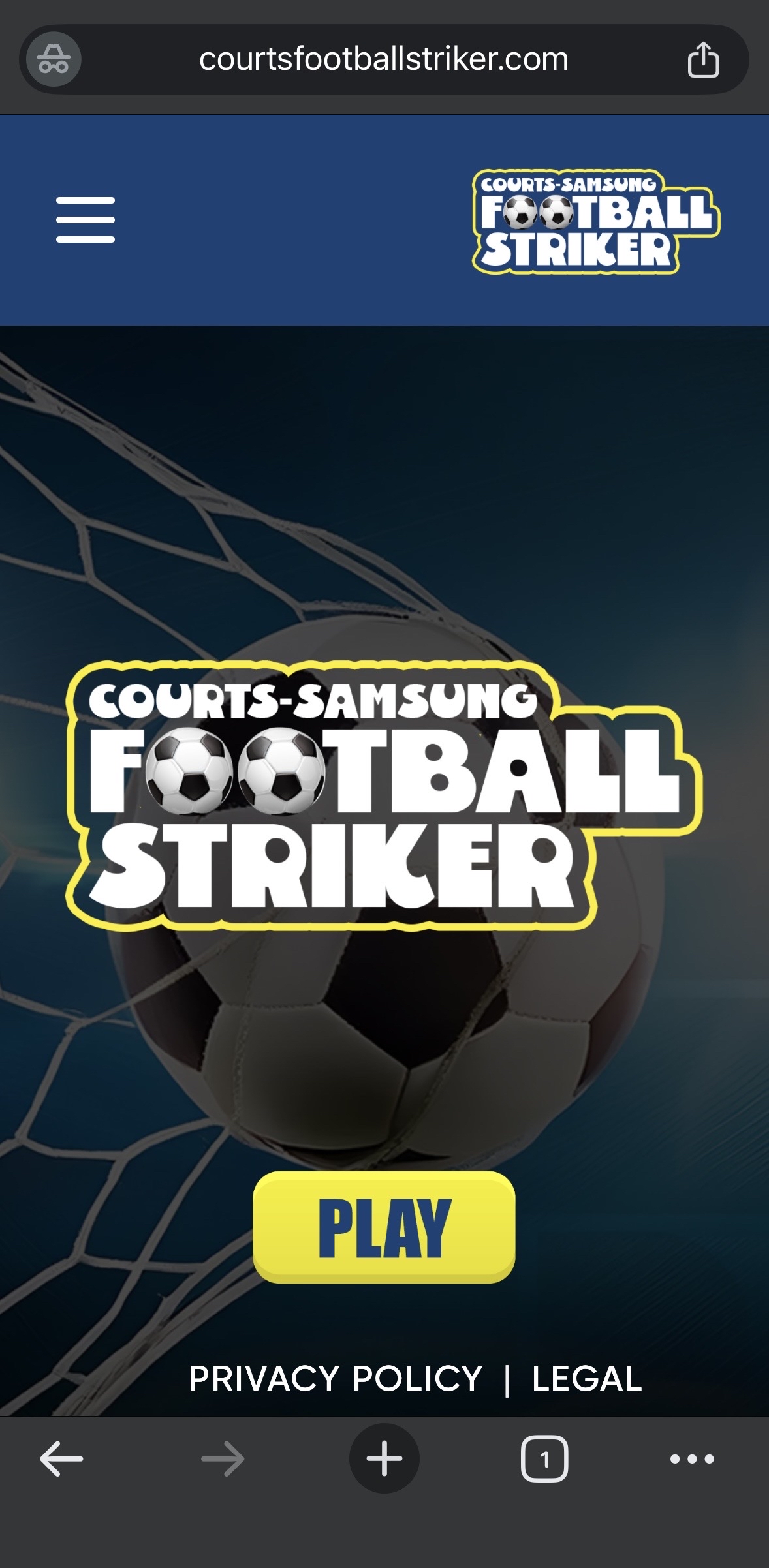
Open Google Chrome on your iPhone and navigate to the game. Tap the three dots (···) icon in the bottom-right corner of the screen.
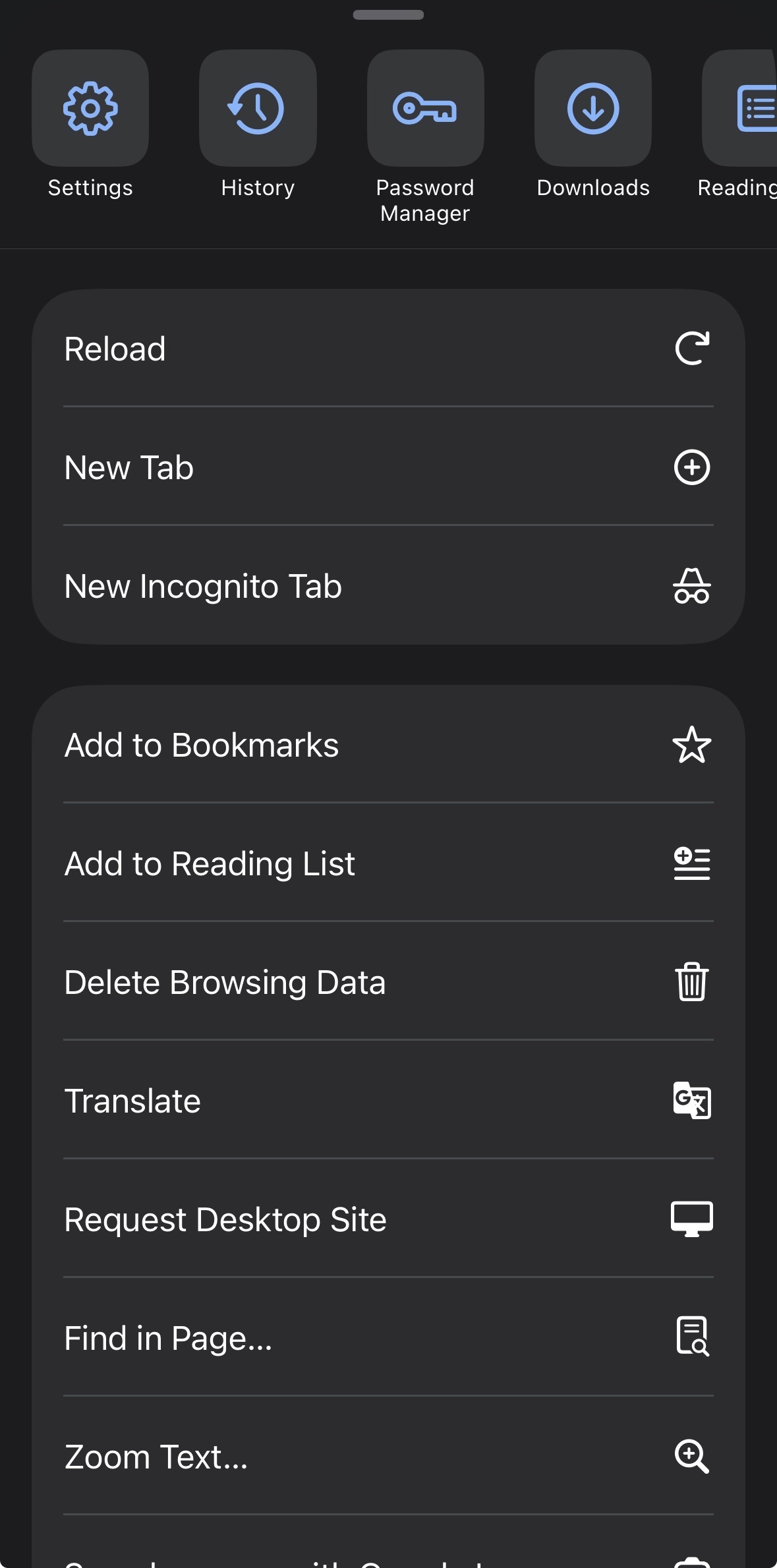
A menu will appear. Tap "Delete Browsing Data".
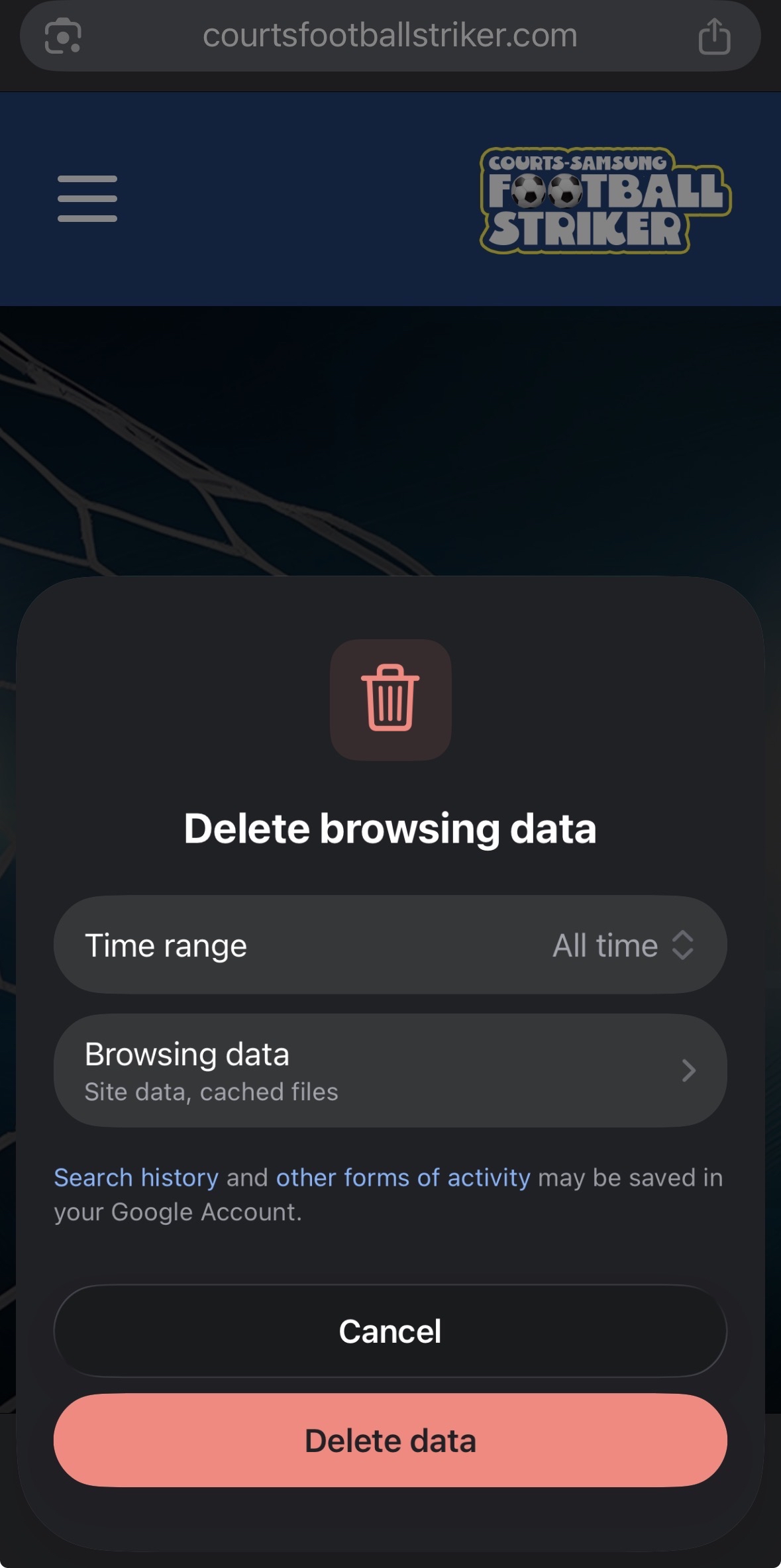
You will see a "Time Range" option — tap it and change it to "All Time". Then tap "Browsing Data" to choose exactly what gets cleared.
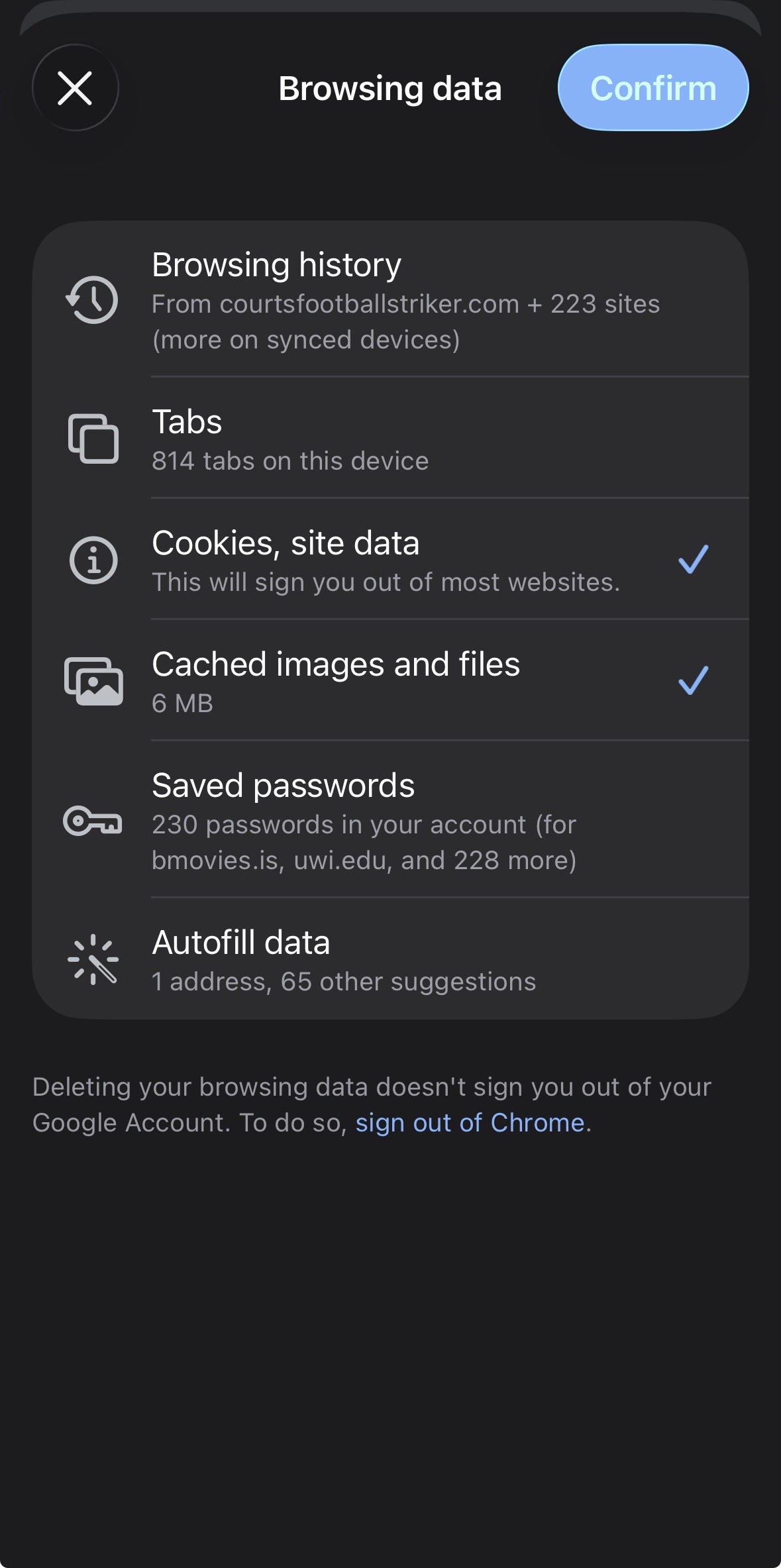
Make sure "Cached Images and Files" has a tick next to it. Then tap "Confirm" — this takes you back to the previous screen.
You are back on the previous screen. Tap "Delete Data" to complete the process. Your cached files are now cleared.
Open Google Chrome on your Android phone and navigate to the game. Tap the three dots (⋮) icon in the top-right corner of the screen.
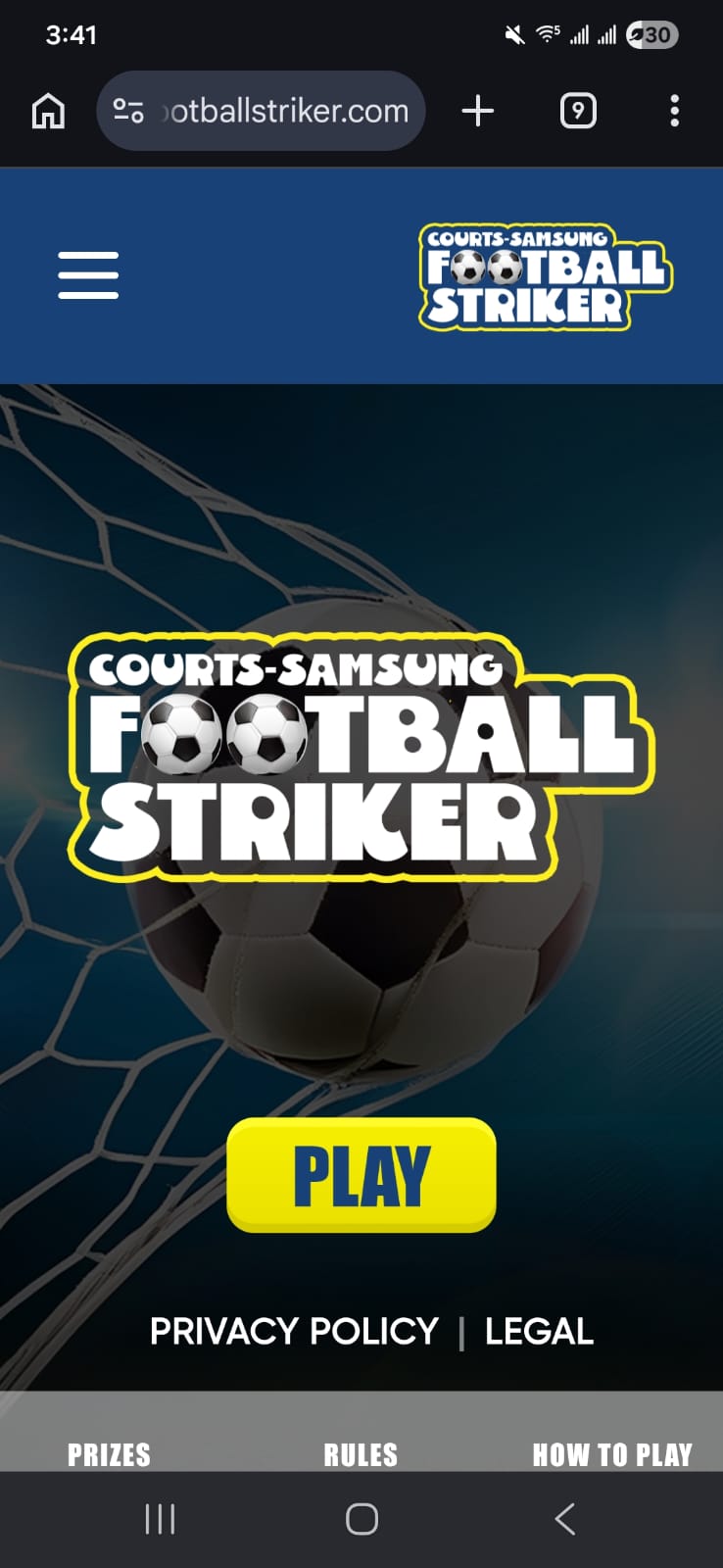
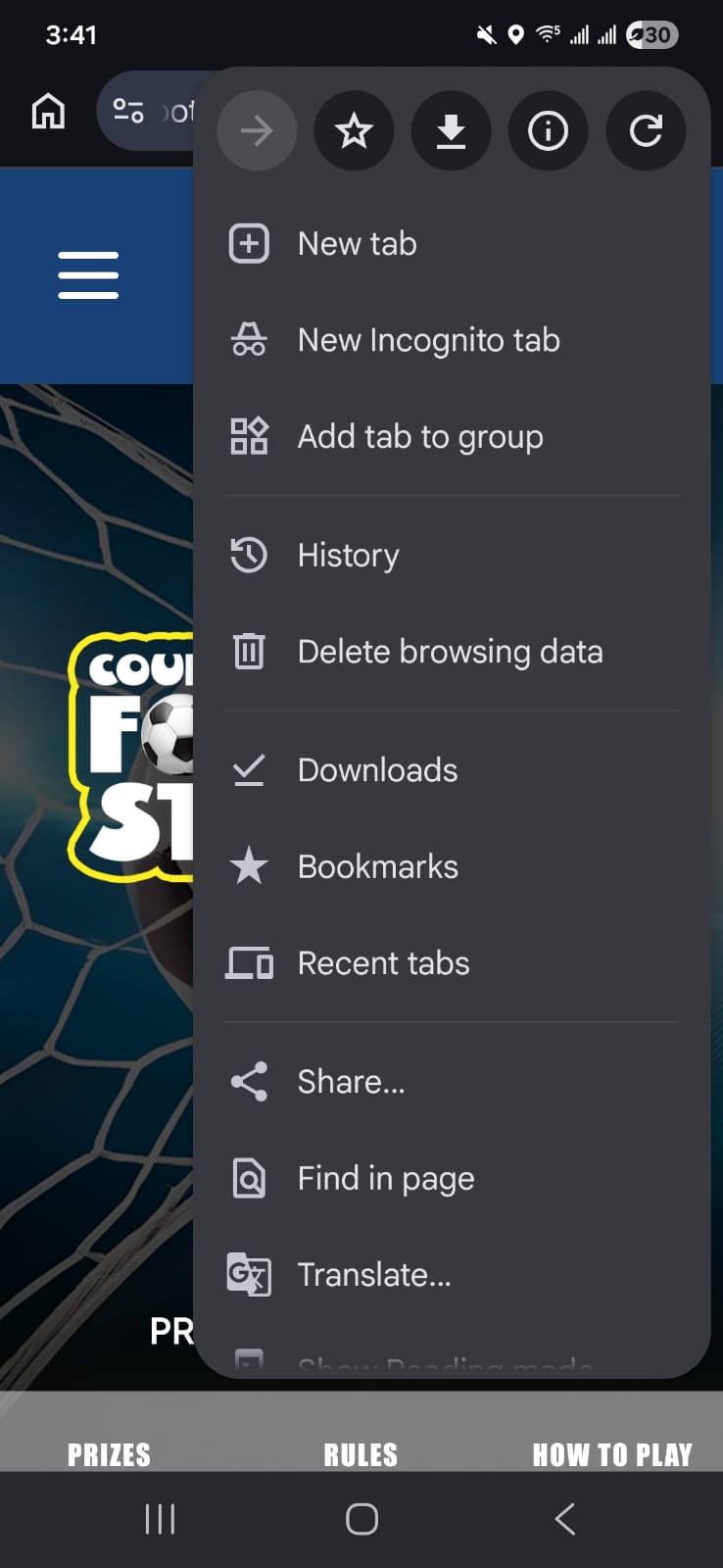
A menu will appear. Tap "Delete browsing data".
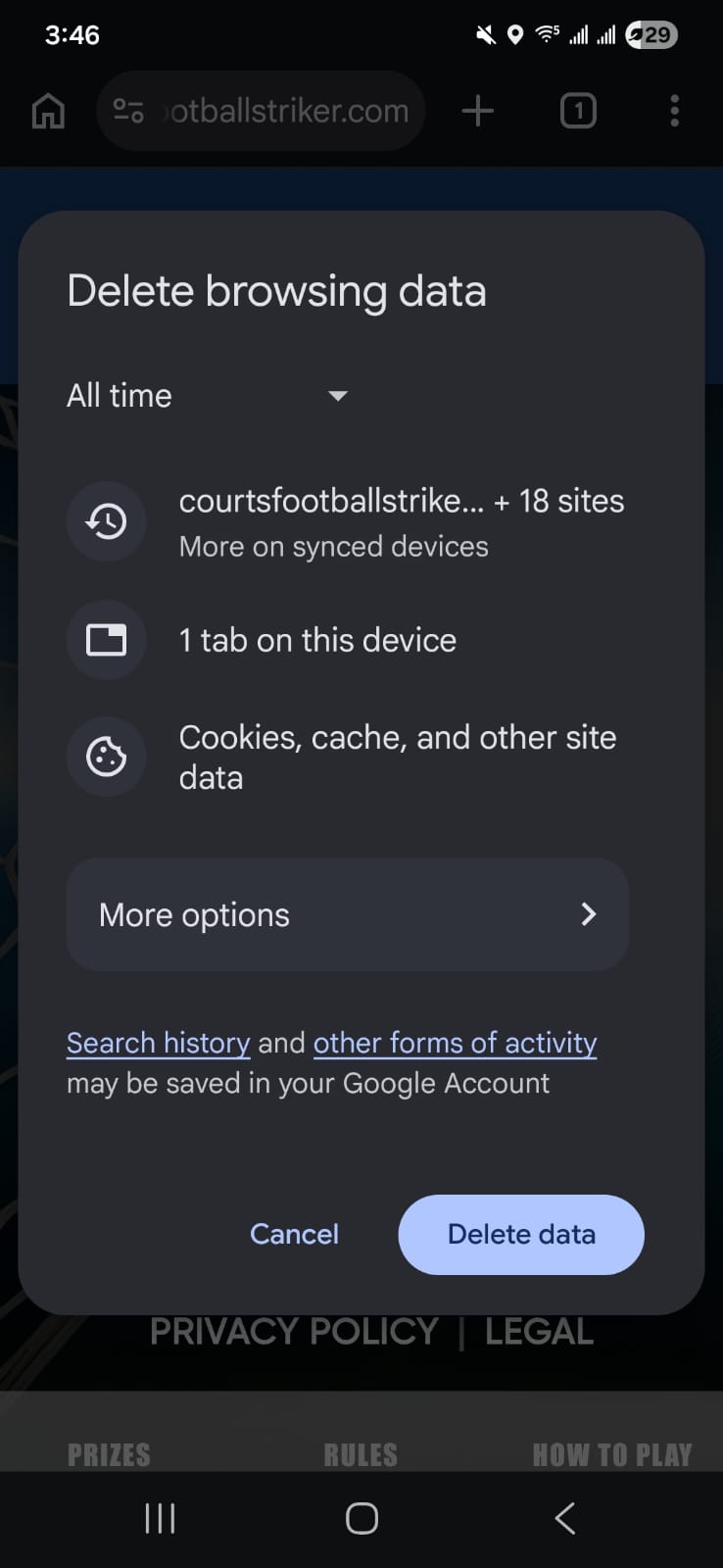
A popup will appear. Tap "More options" to access the full list of items you can clear.
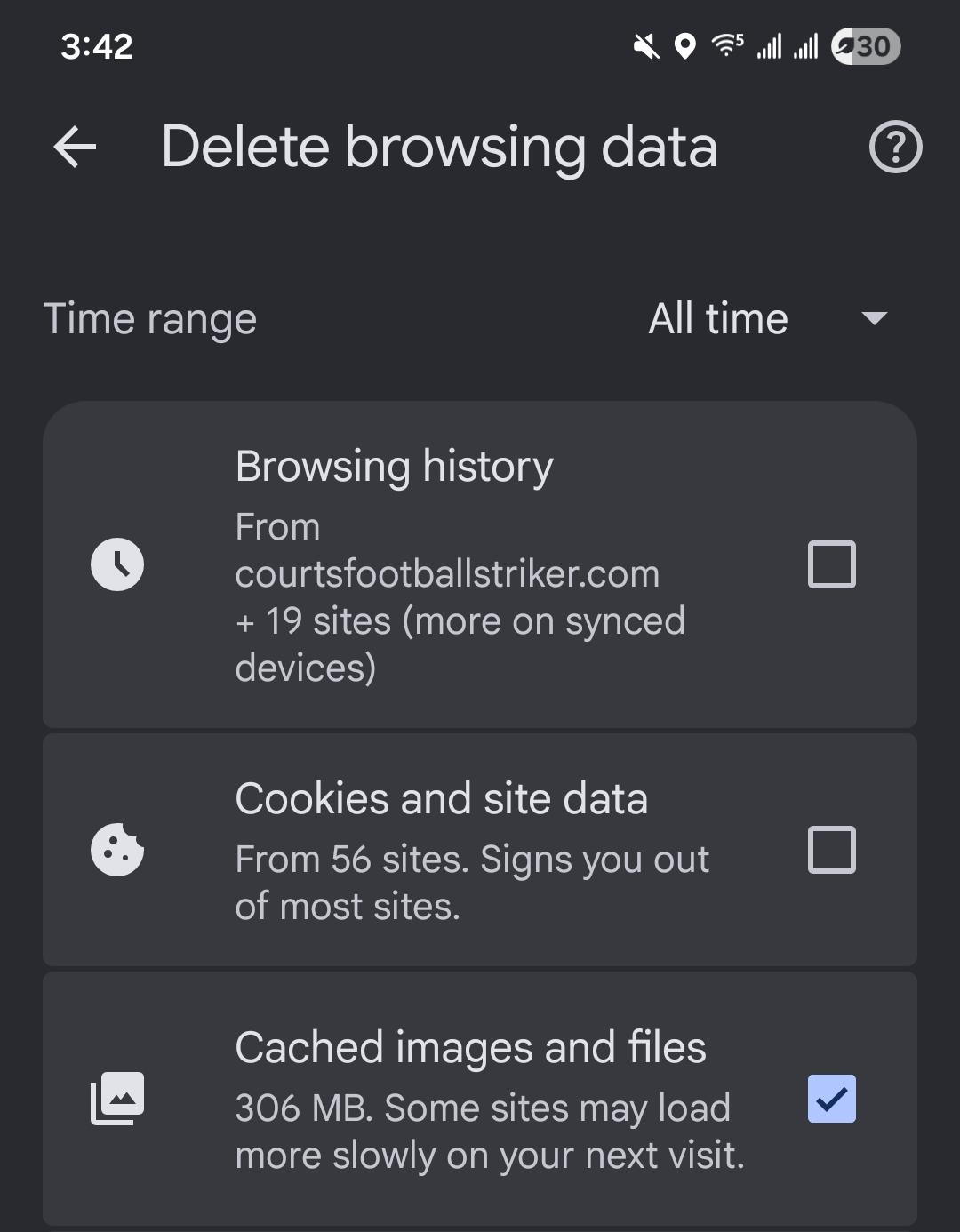
Change the time range dropdown to "All time". Then make sure "Cached images and files" has a tick next to it.
Tap "Delete data" to confirm. Your cached files are now cleared.